How SEO AutoPilot works — setup, content, leads, reports, and licensing. Written for site owners and agencies using the plugin on their WordPress site.
Free trial lasts 14 days. Features marked Not in trial or Agency only need a paid or Agency license.
No articles match your search. Try different words or browse the section index above.
Getting started
SEO AutoPilot is a WordPress plugin that helps local service businesses publish SEO-focused blog content on autopilot. You describe your business and service area once; SEO AutoPilot generates and publishes posts that target local search intent.
It also captures leads from your site, surfaces content and landing-page performance in Reports (Agency), and can email monthly client reports on paid plans.
The free trial lasts 14 days. No credit card is required to start.
During the trial you can run the full setup wizard, publish content on the default daily schedule, view the dashboard, and capture leads. Some advanced features — custom posting schedule, SEO backfill, client reports, and performance analytics — are visible but locked until you enter a paid license key.
When your trial ends, auto-publishing stops until you activate a license. Your existing posts and settings remain on your site.
After installing SEO AutoPilot, a five-step setup wizard walks you through business details (including business type for photos and tone), content mode and market (services and locations), AI and schedule preferences, and launch.
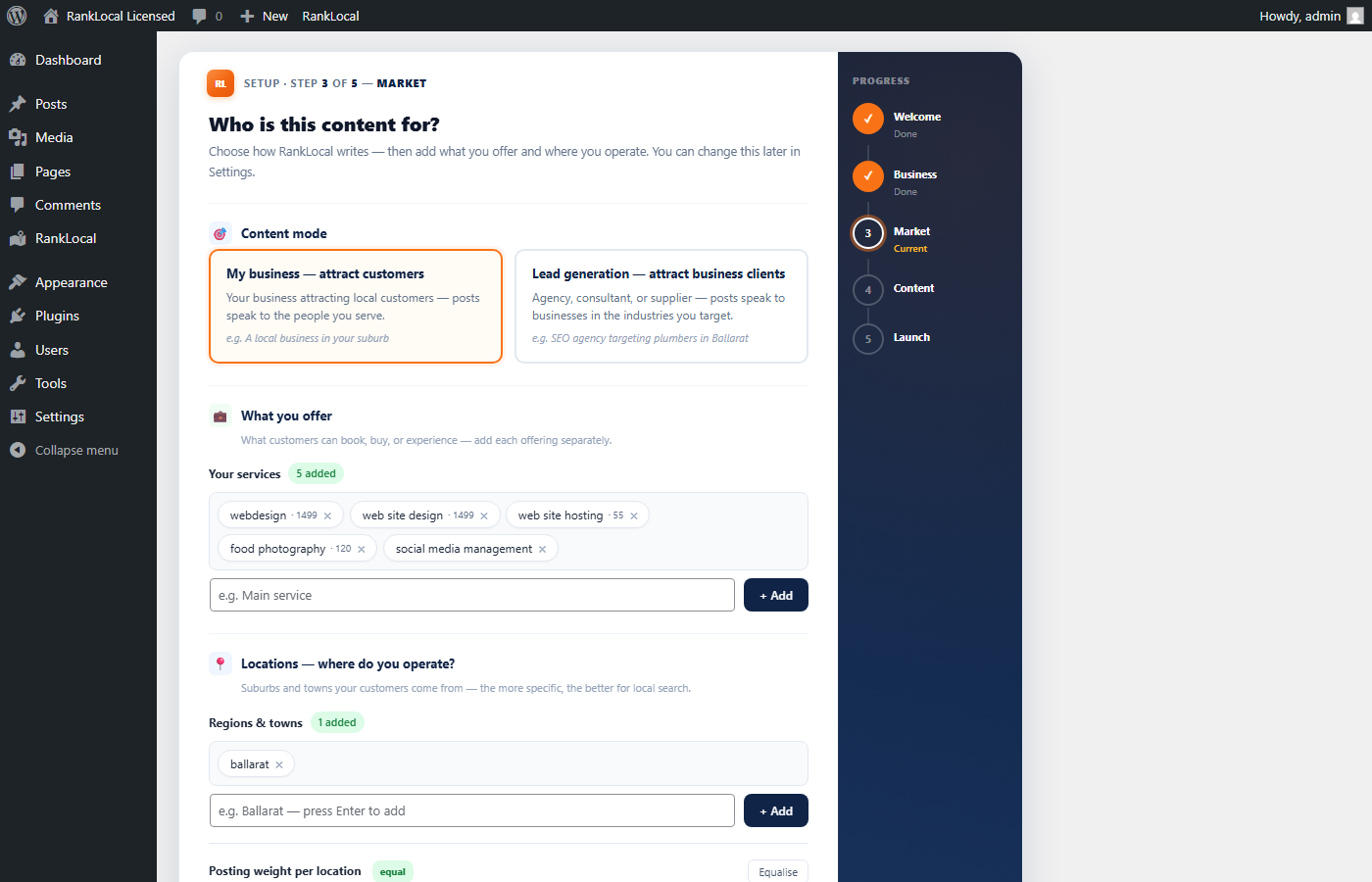
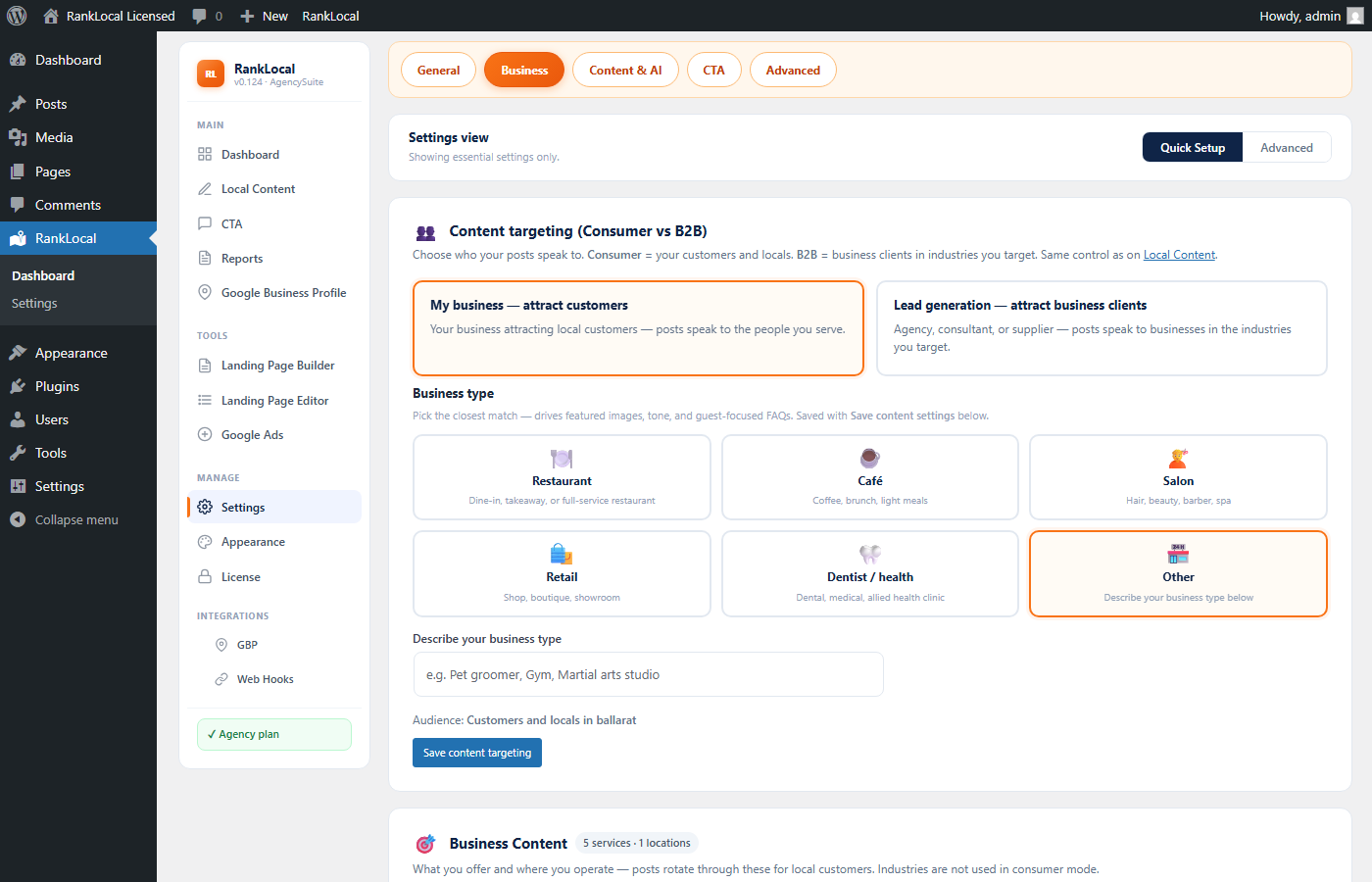
Step 3 asks who your posts are for: B2C (restaurant, café, salon, venue → customers and locals) or B2B lead gen (agency → business clients in industries you target). B2C is the default. Industries are hidden in B2C mode; services and locations stay required.
Agency licenses also unlock a separate Landing Page Setup wizard (seven steps) under Tools.
Wizard step 3 — choose B2C or B2B, then add what you offer and where you operate.
Go to SEO AutoPilot → License in your WordPress admin and paste the key from your purchase or trial confirmation email. Click activate.
The key is tied to your email and plan tier (Single site or Agency). Each activation uses one site slot on your plan. You can deactivate a site from the same screen to free a slot when moving to a new domain.
Launch saves your wizard settings and immediately writes and publishes one sample post so you can see how content looks on your live theme.
Scheduled auto-posting uses draft approval on by default — new AI posts land as drafts in Local Content until you approve them (you can turn this off in the wizard or Local Content tab). During your 14-day trial, approved posts publish on the default daily schedule. On a paid license you can change frequency, days, and timing under Settings → Schedule.
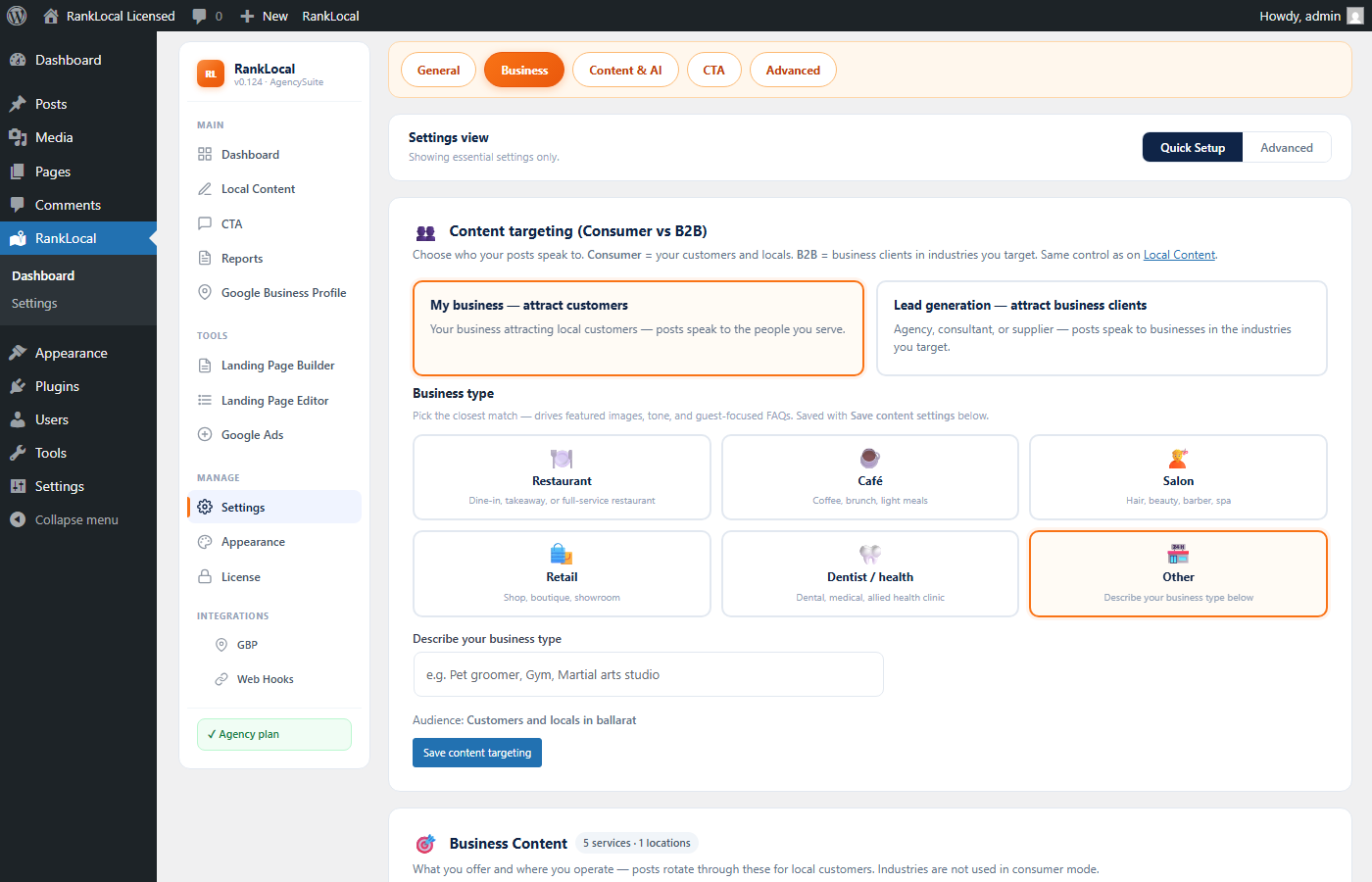
On wizard step 2, choose the type that best describes your business: Restaurant, Café, Salon, Retail, Dentist / health, or Other (with a custom label).
Business type helps SEO AutoPilot pick relevant featured images and guest-focused copy — without assuming every B2C site is a restaurant. It is stored in your business profile and used for AI image prompts and FAQs on B2C sites.
Dashboard
The SEO AutoPilot sidebar groups features into Main, Tools, Manage, and Integrations.
Main — Dashboard (overview), Local Content, Leads, Reports, and Google Business Profile.
Tools (Agency) — Landing Page Builder, Landing Page Editor, and Google Ads.
Manage — Settings, Appearance, and License.
Integrations — GBP and Web Hooks sub-links.
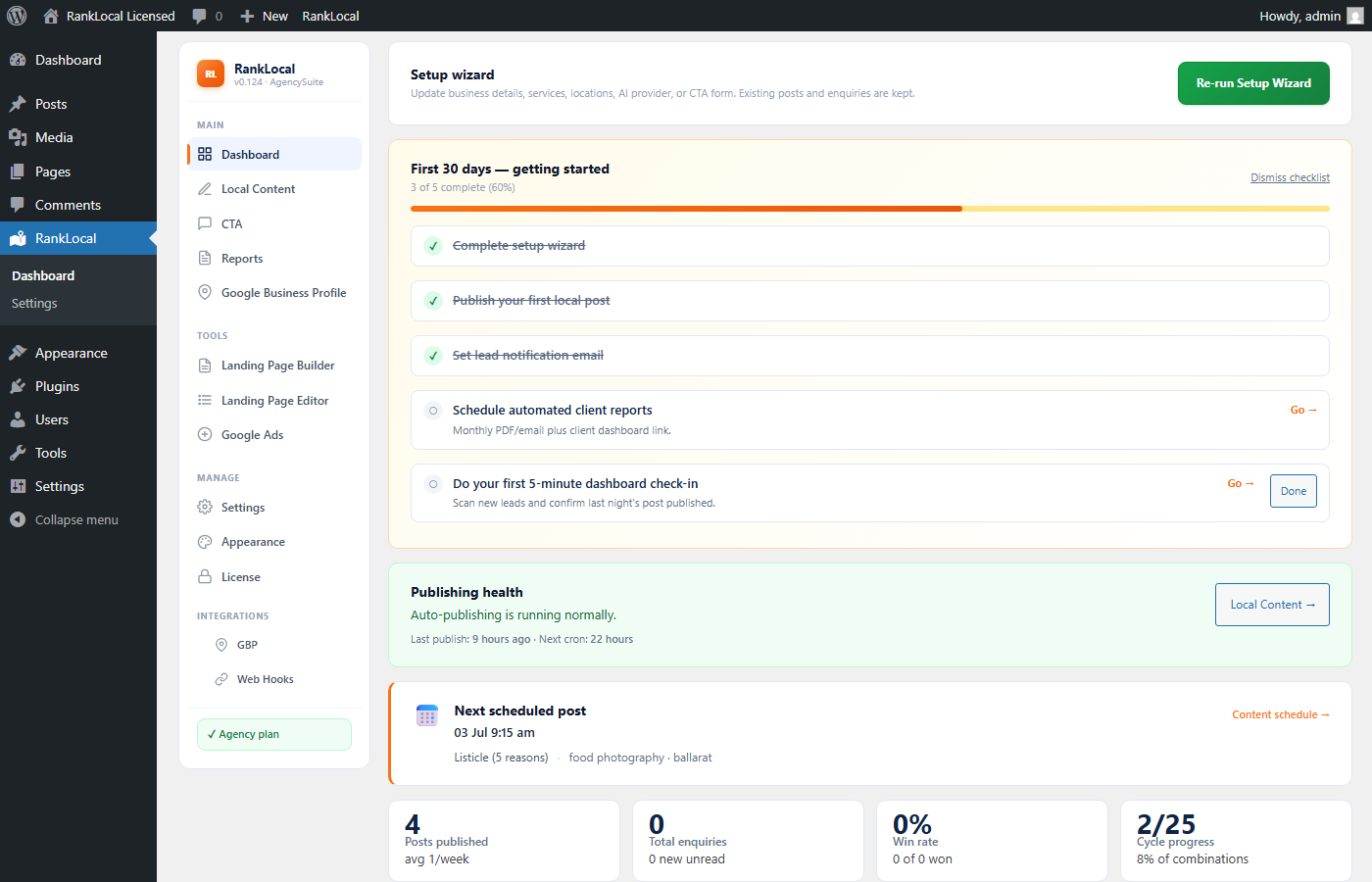
Overview tab — posting status, recent activity, and trial or license state.
Overview summarises how SEO AutoPilot is performing on your site: recent posts, upcoming scheduled publishes, lead counts, and license or trial status.
Use it as your daily check-in — confirm posts are publishing, review new leads, and spot any configuration warnings before they affect content.
On a trial license, SEO AutoPilot shows Schedule, Backfill, and Reports areas so you know what unlocks with a paid plan, but those actions are blocked until you activate a key.
Core trial experience — wizard setup, daily auto-posting, content list, leads, and settings — remains fully usable for all 14 days.
Content
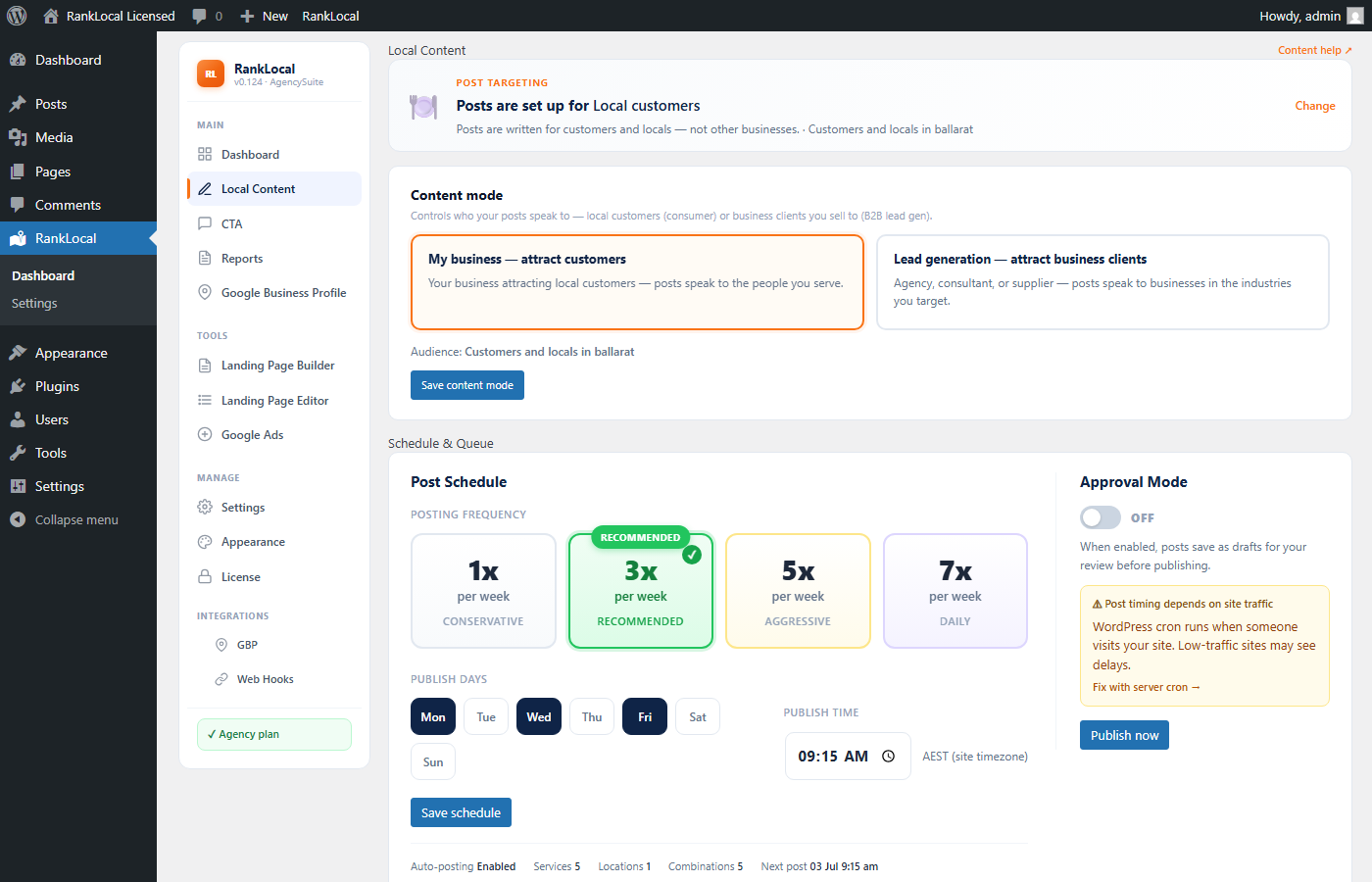
The Local Content tab lists posts SEO AutoPilot has created on your WordPress site — published and pending drafts. A post targeting banner at the top shows whether posts are written for local customers (B2C) or business clients (B2B). Change content mode here anytime; B2C sites default to Near me, Listicle, and Seasonal templates.
You can open any post in the block editor, approve drafts, change the title or body, unpublish, or delete it like a normal WordPress post. SEO AutoPilot tags generated posts so you can filter them from your own manual content.
Local Content — post targeting banner, content mode, and generated posts with edit links.
Content mode (also called content targeting) controls who SEO AutoPilot writes for — not just what suburb or service you mention.
B2C — your own business attracting customers (restaurant, café, salon, venue, retail). Posts speak to diners, guests, and locals. Industries are hidden; services are labelled What you offer; price fields are hidden. Admin uses CTA labels. Default templates: Near me, Listicle, Seasonal.
B2B lead gen — agencies, consultants, and suppliers attracting business clients. Posts speak to the industries you target. Admin uses Leads labels. Add optional client industries; service price ranges can appear on landing pages.
Set content mode in wizard step 3, on Local Content, or under Settings → Business → Content targeting. Changing mode updates titles, copy tone, image prompts, form type, and default templates for newly generated posts — existing published posts are not rewritten automatically.
B2C vs B2B — choose once in the wizard, change later on Local Content.
SEO AutoPilot uses your business profile, content mode, service list, and target locations to draft locally relevant articles. In B2C mode, titles and copy target your customers and locals (e.g. “Thai restaurant near me in Ballarat”). In B2B mode, copy targets businesses in your chosen industries.
Topics rotate through enabled content templates based on your market and mode. Each post includes SEO-friendly structure — headings, internal links where appropriate, and metadata — aligned with your configured tone and branding.
Yes. Generated posts are standard WordPress posts. Edit them anytime in Posts or from the Local Content tab. Changes you make are respected — SEO AutoPilot will not overwrite your manual edits on the next run.
Deleting a post removes it from your site permanently, same as any WordPress post.
On a paid license, open Settings → Schedule to set posting frequency, which days of the week to publish, and preferred time windows.
During the free trial, posts publish on the default daily schedule only. Custom schedule controls unlock when you activate a paid key.
Leads
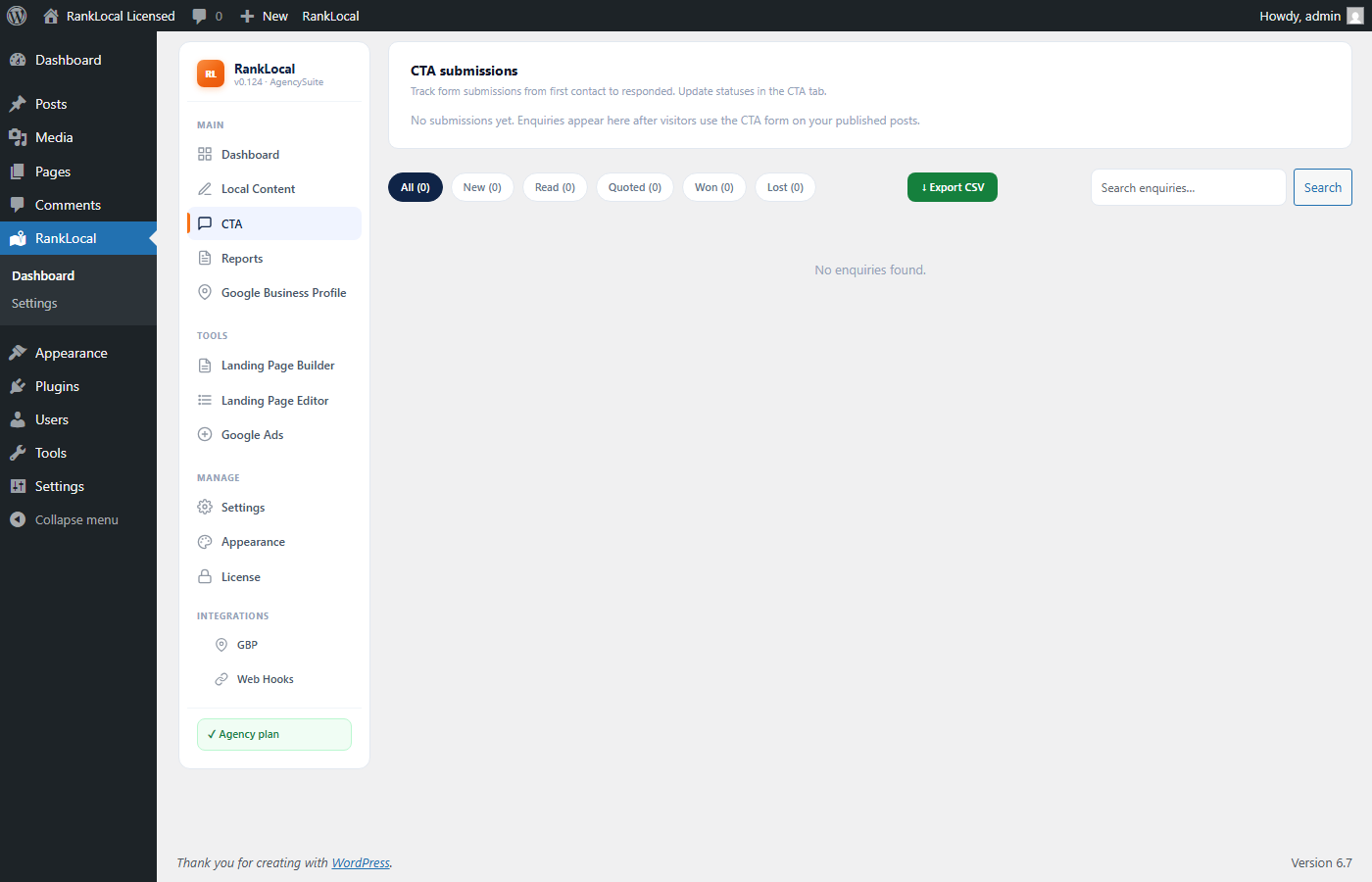
The Leads tab lists form submissions and enquiry captures SEO AutoPilot tracks from your site — name, email, phone, message, source page, and date.
Leads are available on trial and paid plans. Use the list to follow up quickly without digging through email notifications alone.
Leads — captured enquiries with source page and contact details.
Configure lead notification recipients under Settings → Notifications. By default, alerts go to the WordPress admin email.
On Agency plans you can add multiple recipients so sales or account staff receive copies.
Every auto-post embeds [rl_quote_form] at the bottom. The form and admin labels adapt to your content targeting:
B2C — sidebar and settings use CTA terminology. Headline and button use enquiry language (e.g. “Get in touch”, “Send enquiry”). Budget and industry fields are hidden.
B2B — sidebar and settings use Leads terminology. Quote language, optional budget ranges, and industry dropdown when you target client industries.
Under Settings → CTA (B2C) or Settings → Leads (B2B), use Form targeting for auto defaults or Custom form copy. Colours: Appearance → CTA Form or Lead Form.
Reports
Client reports summarise content published, leads captured, and performance metrics for a date range. On paid plans you get automated monthly reports, PDF download, scheduled email delivery, and a read-only client dashboard link — not available during the free trial.
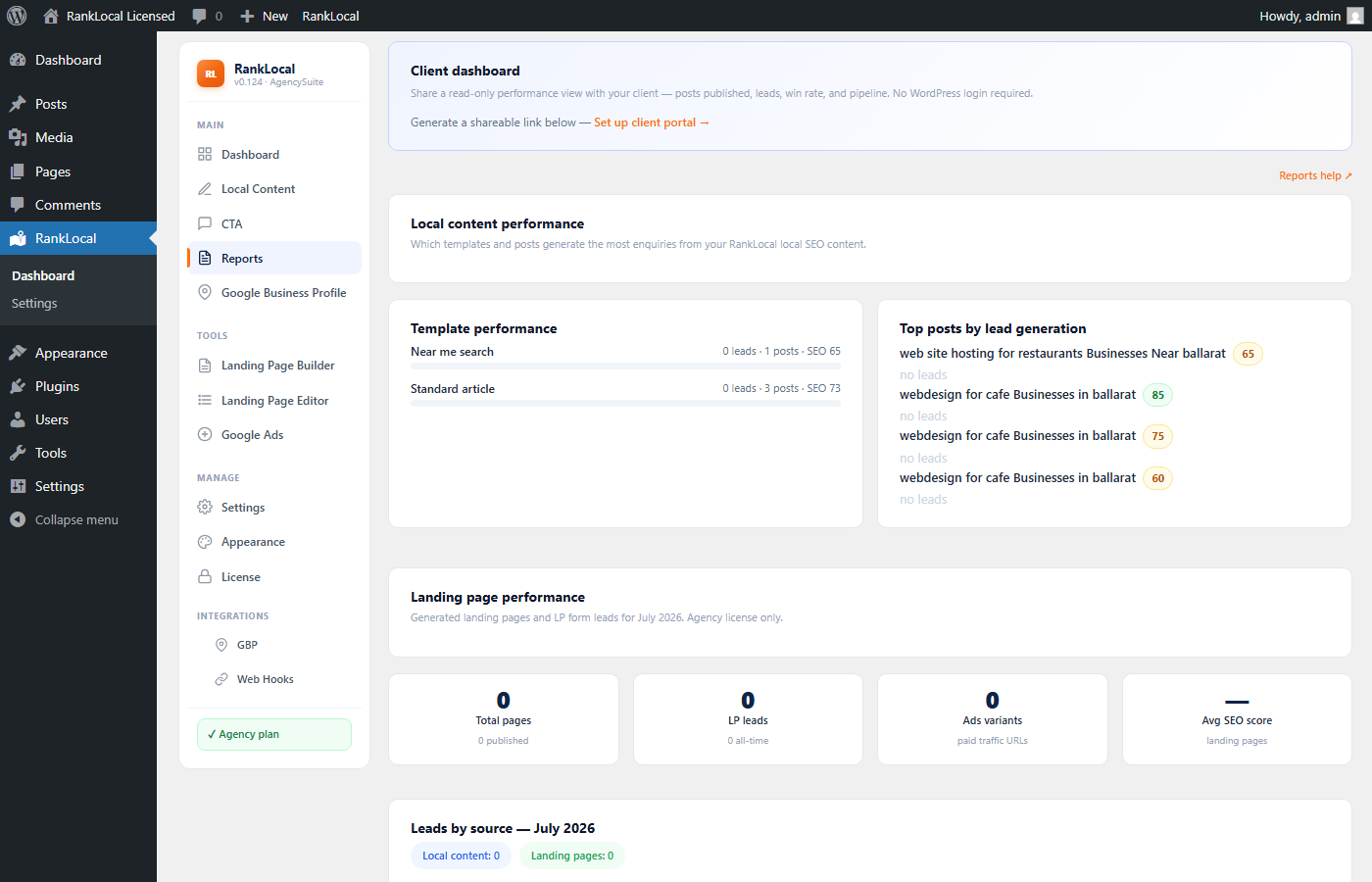
Agency adds white-label branding, manual on-demand reports, multiple email recipients, and lead breakdown by blog vs landing page vs other forms.
Open Reports in the SEO AutoPilot dashboard. Choose a date range, preview the report, then download PDF or send by email.
Delivery history shows past sends so you can confirm clients received their monthly update.
The client portal link gives your customer a branded, read-only page with their latest report metrics without WordPress login access.
Generate the link from the Reports tab and share it by email. Revoke or regenerate the link anytime from the same screen.
Reports & analytics
The Reports tab summarises posts published, leads captured, and (on Agency plans) landing-page performance. Agency reports split leads by source — local blog content vs landing pages vs other forms.
During trial the Reports area is visible but locked. Paid Single site plans unlock scheduled and manual reports; full landing-page reporting requires an Agency license.
Reports — content and lead performance; Agency plans include landing-page breakdowns.
SEO AutoPilot focuses on local content, leads, and client reporting. For keyword rank history and search analytics, use a dedicated SEO plugin on your WordPress site.
Agency users managing many clients can use Agency Hub for network-wide content, lead, and landing-page rollups.
Settings
Settings is grouped into sections: Business, Market, Content, Schedule, Notifications, and Integrations.
Most trial users can edit business, market, and content preferences immediately. Schedule customisation unlocks with a paid license.
Settings — business, market, content, schedule, and notification controls.
Under Settings → Business, the content targeting card lets you switch between B2C and B2B — the same control as wizard step 3 and Local Content. B2C sites also set business type (restaurant, café, salon, etc.) for images and customer FAQs.
Business below that holds services, locations, and (B2B only) target industries — used in every generated post.
Market defines geographic targets: suburbs, cities, or postcodes. SEO AutoPilot weaves these naturally into titles and body copy for local relevance.
Settings → Business — content targeting, business type, services, and locations.
Under Settings → Content you control writing tone, excluded topics, default category, featured image behaviour, and how aggressively posts link to your service pages.
Content targeting (B2C vs B2B) is on Settings → Business and Local Content — it drives audience, CTA vs quote forms, default templates, and title patterns. Changes apply to newly generated posts; existing published posts are not retroactively rewritten unless you run SEO Backfill (paid license).
SEO Backfill bulk-refreshes existing SEO AutoPilot posts with updated internal links, pricing mentions, related-article blocks, meta descriptions, and SEO scores based on your current settings.
It is available on paid licenses only, not during the free trial.
Appearance & license
Appearance settings affect SEO AutoPilot-owned front-end elements such as lead capture styling and report/portal presentation where applicable.
Generated blog posts inherit your WordPress theme — SEO AutoPilot does not replace your site design.
Trial — 14 days, one site, daily auto-posting with core features.
Single Site — one active WordPress installation with unlimited posting, reports, and paid enhancements.
Agency — unlimited activations plus Landing Page Builder and Editor, Google Ads tools, white-label reports, multi-recipient notifications, manual report generation, and Agency Hub network dashboard.
Yes. Deactivate the license on the old site under SEO AutoPilot → License, then activate the same key on the new site. This frees one activation slot.
Settings and posts stay on the old WordPress install unless you migrate the database separately — the license controls plugin features, not content export.
Agency features
Agency is built for shops managing many local clients. It adds:
Testimonials — add social proof blocks used across generated pages.
Page URLs — slug patterns for industry × service × region combinations.
Recipients — lead notification emails for landing-page forms.
Generate — review combinations and publish pages to WordPress.
Reopen any step from the wizard progress bar until you mark setup complete.
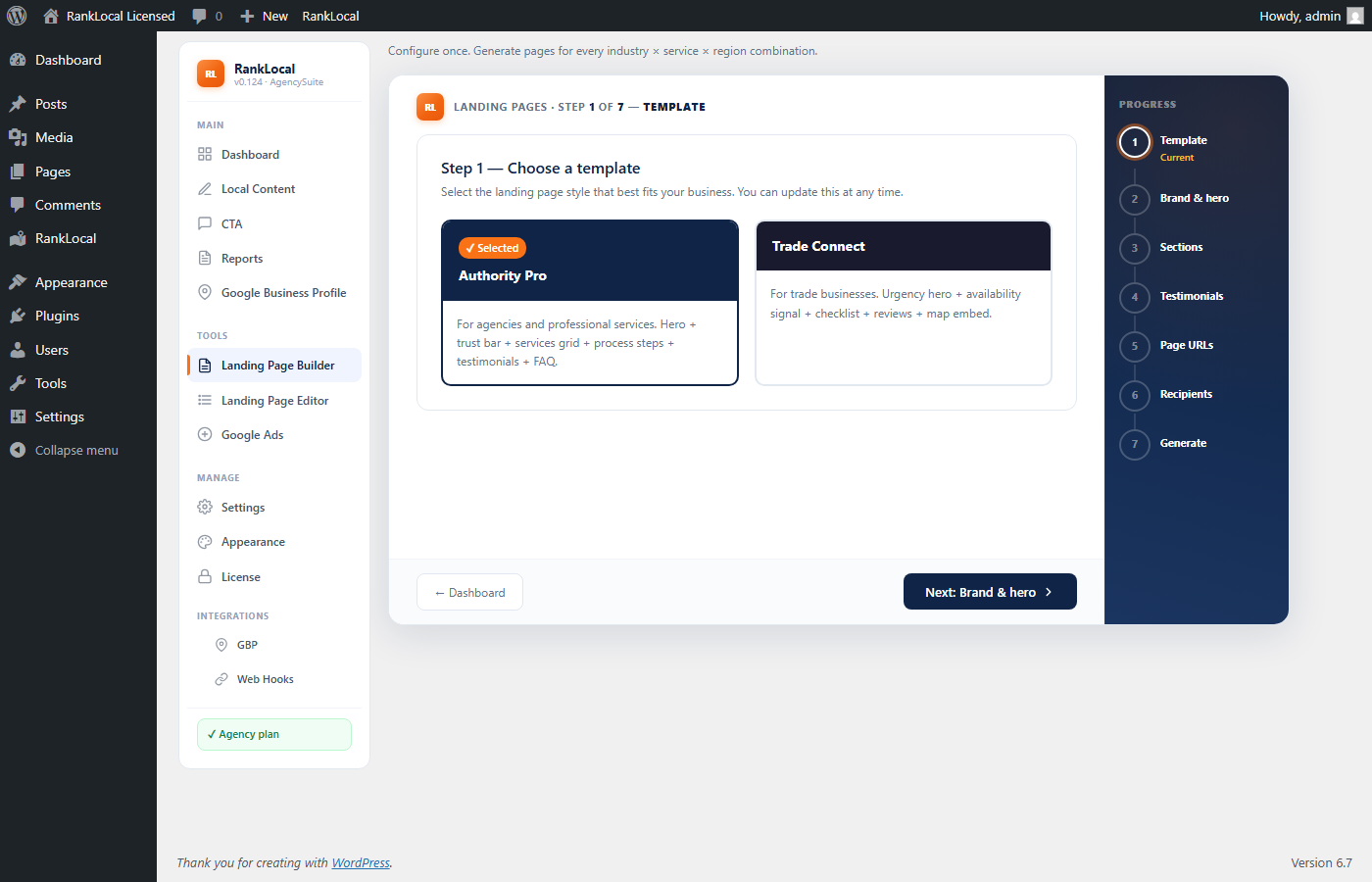
Step 1 — Template: pick the layout used for all generated landing pages.
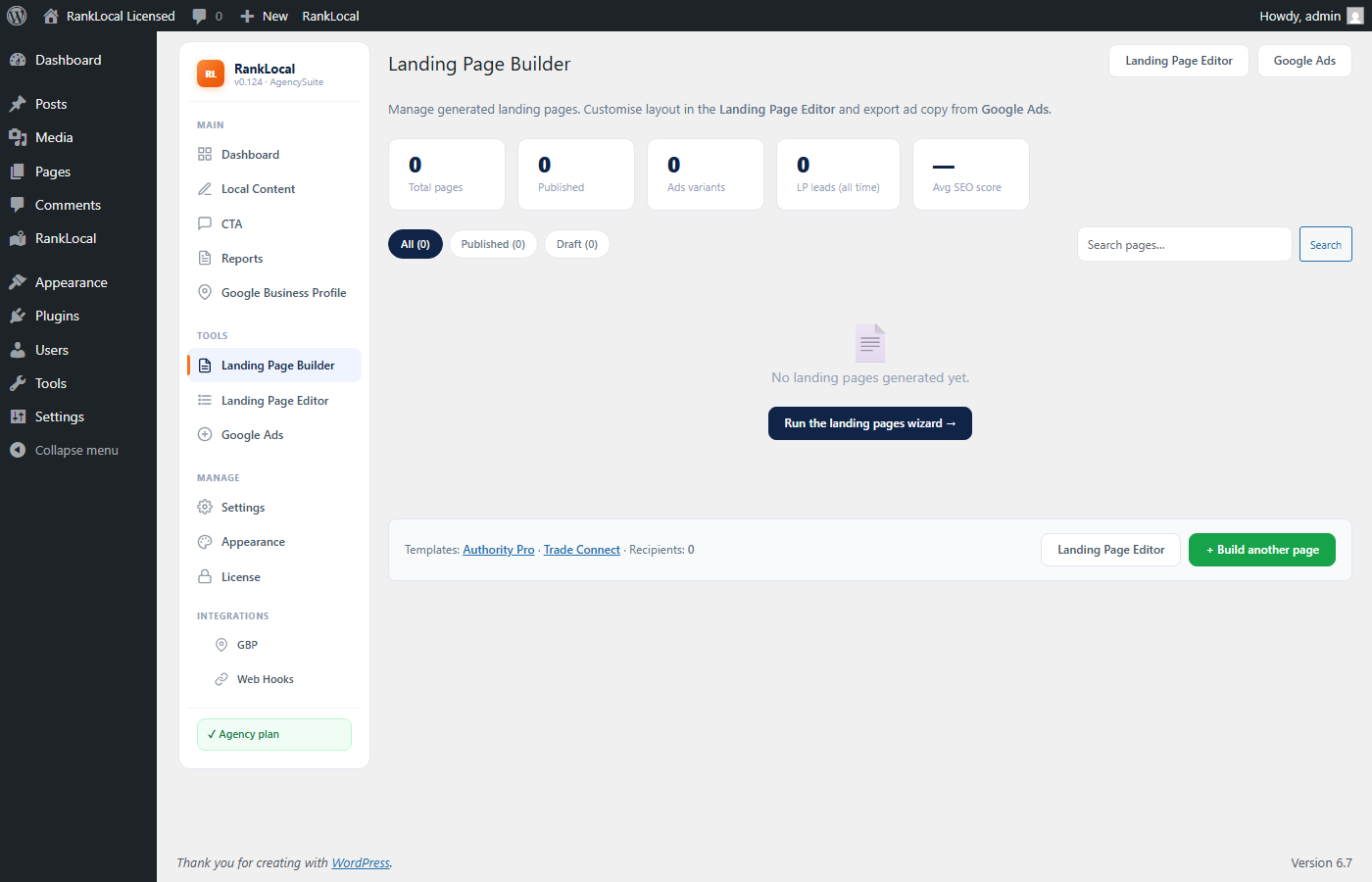
Landing Page Builder (Tools sidebar) is where you choose templates, preview live layouts with your saved brand settings, and kick off bulk page generation after the setup wizard.
Use template previews to confirm hero, sections, and CTA blocks before generating pages for every service and suburb combination.
Landing Page Builder — template library and live preview with your brand settings.
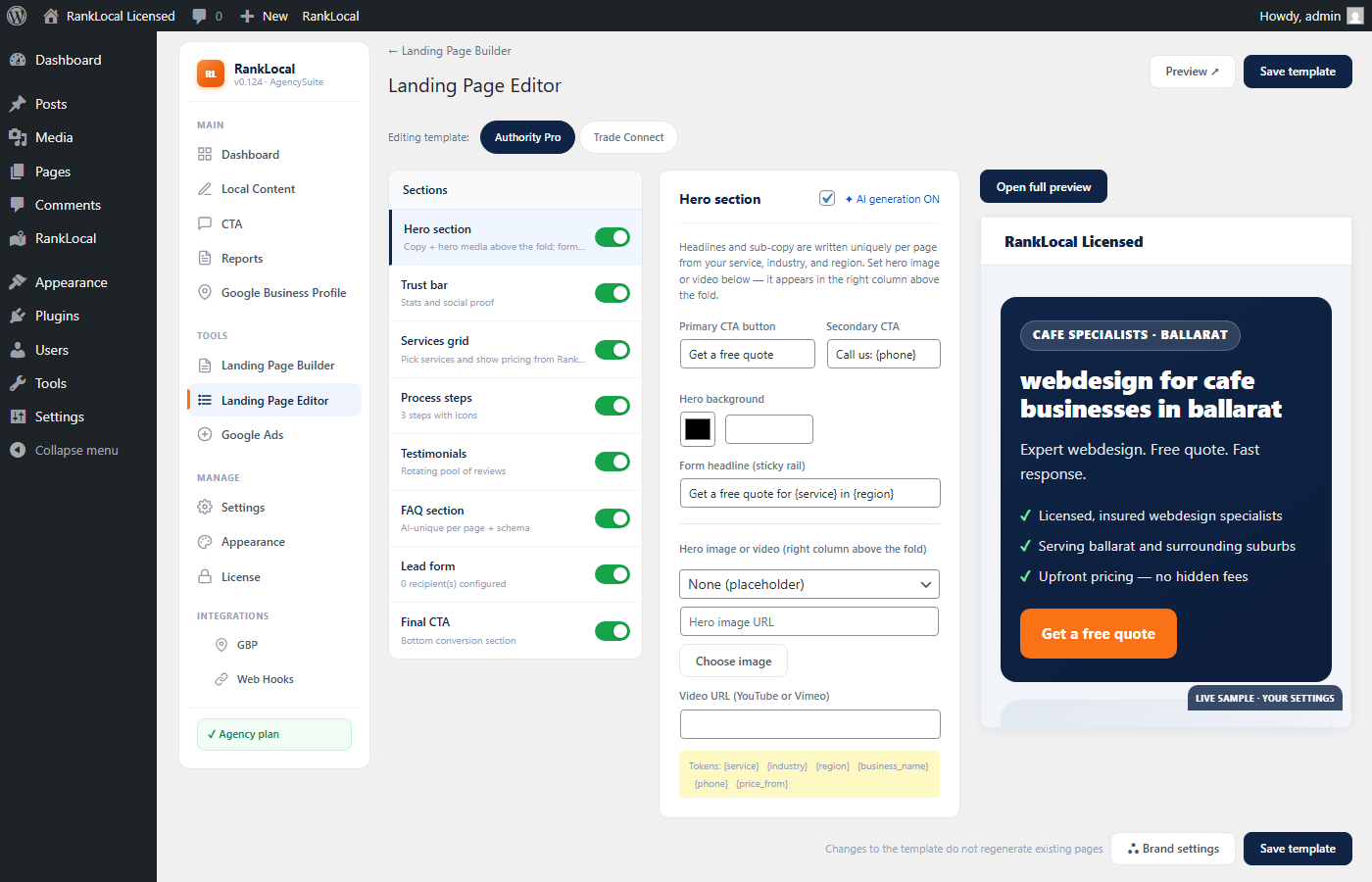
Landing Page Editor (Tools sidebar) lets you tune section copy, headlines, and enabled blocks for each template — without drag-and-drop reordering. Changes apply to newly generated pages and template previews.
For one-off edits on a published page, open it in the WordPress block editor like any other page.
Landing Page Editor — per-section copy and enable toggles for your template.
From Landing Page Builder, open a template preview to see the full page with your wizard brand settings — hero image, colours, section order, and sample copy.
Previews use either demo content or your saved wizard settings so you can QA the layout before generating dozens of suburb pages.
Live preview — template rendered with your brand and section settings.
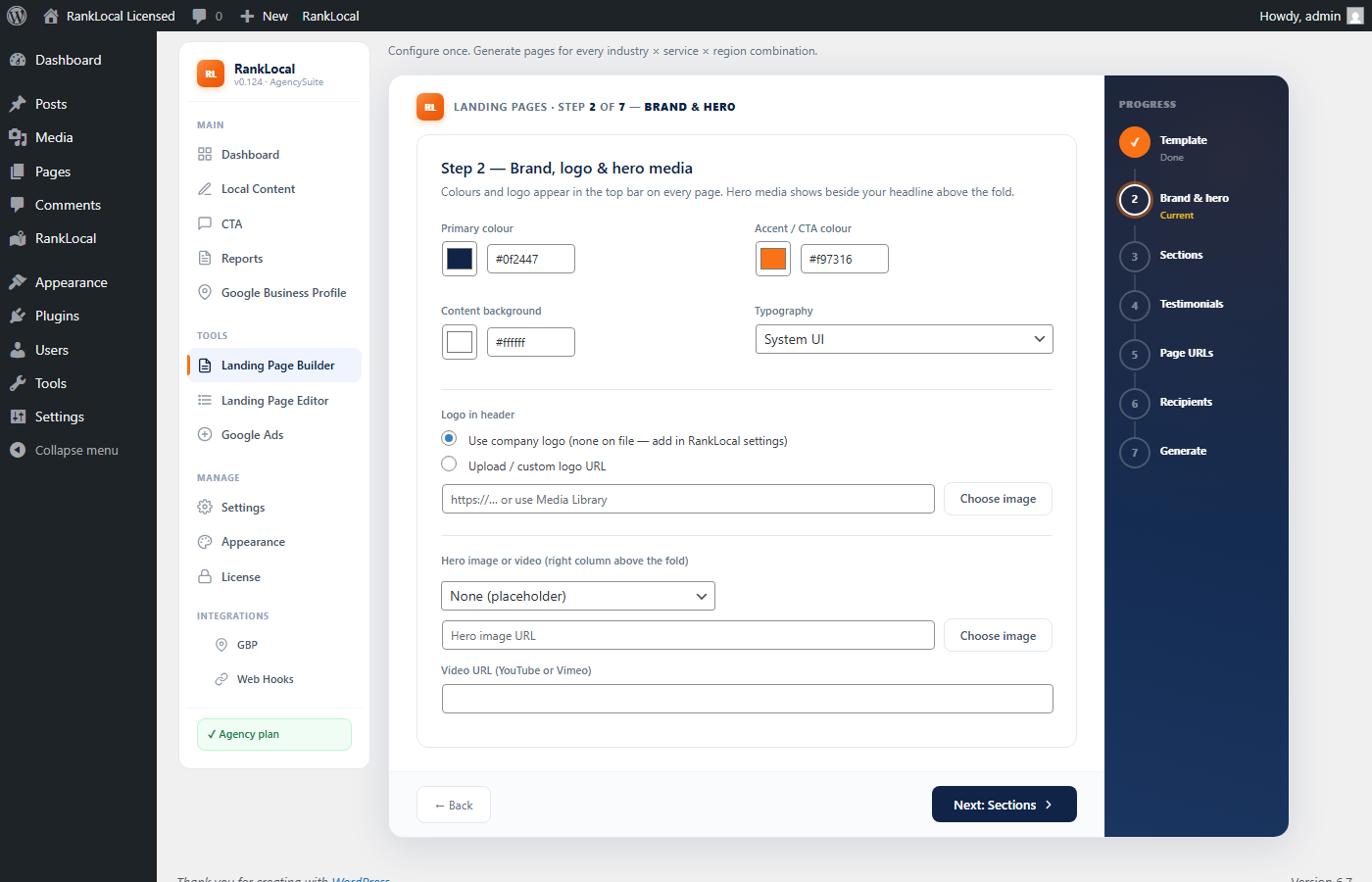
In the setup wizard Brand & hero step (step 2), upload or select a hero image and headline used across generated landing pages.
You can return to the wizard from Landing Page Builder to update the hero without regenerating every page — new generations pick up the latest image.
Wizard step 2 (Brand & hero) — set hero image, headline, and brand colours.
White label removes SEO AutoPilot branding from client-facing reports and portal pages so you can present results under your agency name.
Google Business Profile tools help draft and schedule GBP updates aligned with your content strategy (connection requirements vary by Google account access).
Agency users can generate one-off reports outside the monthly schedule — useful before client meetings or QBRs.
Add multiple email recipients for lead alerts and scheduled reports so account managers and principals stay in the loop without sharing one inbox.
Agency Hub
Agency Hub is a separate WordPress plugin (ranklocal-agency-hub.zip) installed on your agency operations site — not on client sites. It connects to every client SEO AutoPilot install registered on your Agency licence and rolls up publishing health, approval queues, leads, and landing-page stats in one dashboard.
Current release: Agency Hub 1.7.4 · requires SEO AutoPilot 2.5.76+ on client sites for leads REST; 2.5.155+ recommended for Content API visibility, publish-stall alerts, and outage resilience.
Download ranklocal-agency-hub.zip from the AgencySuite customer portal (included with Agency licence).
Upload and activate on your agency WordPress site (ops site — not client sites).
Open Agency Hub → License and paste the same Agency licence key used on client SEO AutoPilot installs.
Confirm the green API ping on the License tab, then review your client roster.
Client sites must run SEO AutoPilot with the same Agency key so heartbeats register them on your licence.
Client Sites — live roster, health scores, SEO AutoPilot version + Content API pills, posts/week vs network average, filters (update needed, publish stalled), expandable rows with drafts, notes, send-report, and client links.
Approval Inbox — pending AI drafts across all clients; approve or reject in place.
Leads — unified enquiries with source filter; update lead status from Hub (SEO AutoPilot 2.5.76+).
Landing Pages — LP counts, LP leads, ad variants, and GBP connection per client.
Hub operator — viewer access plus approve/reject drafts and update lead status.
Hub manager — operator access plus License tab, alerts, webhooks, white-label, and site removal.
WordPress administrators always have full Hub access. Hub 1.7.4 also supports one-click plugin updates from Dashboard → Plugins when your Agency licence is active.
Yes. On each client site row, use Send report to trigger SEO AutoPilot's POST /report/send REST endpoint on that client site.
Hub verifies Google Search Console is connected on the client before sending (when GSC is enabled on the Agency plan). Fix GSC under the client's SEO AutoPilot → Integrations if the send is blocked.
Webhooks (Alerts tab) POST JSON to your URL on new_lead, stale_draft, site_offline, publish_stall, and license_expiring events. Optional HMAC secret (X-RLAH-Signature) for verification.
Read-only REST API (Hub 1.7.2+) for external dashboards:
GET /wp-json/ranklocal-hub/v1/sites
GET /wp-json/ranklocal-hub/v1/stats
GET /wp-json/ranklocal-hub/v1/leads
Requires active Agency licence on Hub and a logged-in user with manage_options or Hub staff roles. Application passwords are supported.
On Agency Hub → License, set your agency name, logo URL, primary colour, and footer text. Branding applies to the Hub admin UI so internal staff see your identity — separate from SEO AutoPilot white-label on client reports.
Troubleshooting
Common causes:
Trial expired — activate a license or start a new trial.
WordPress cron — low-traffic sites may delay scheduled tasks; visit the site or use a real server cron hitting wp-cron.php.
Plugin conflict — temporarily disable caching or security plugins that block WP-Cron.
Draft mode — confirm Schedule settings are not paused (paid license).
Verify the key was typed correctly (no extra spaces). Check that your plan has a free activation slot — deactivate unused sites from License or the AgencySuite customer portal.
Licensed sites receive update notices in Dashboard → Updates when a new SEO AutoPilot zip is available from AgencySuite.
Current releases: SEO AutoPilot 2.5.157, Agency Hub 1.7.4. Always back up the site before updating. After updating, visit SEO AutoPilot once to confirm the dashboard loads and scheduled publishing resumes.
Email support@agencysuite.com.au from your license email address. Include your site URL, SEO AutoPilot version (under License), and a short description of the issue.
For billing or key issues, use the customer portal on agencysuite.com.au or reply to your purchase receipt.